
只需要 .dll and header
建立使用 DLL 的專案
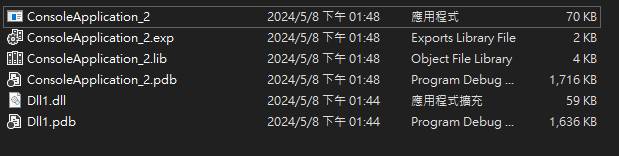
這次我們的專案屬性不需要額外設定, 只要確保 .dll 和我們的 .exe 放在同一層 而且我們可以 include 到對應 header 就好。
但是需要以下步驟
- 包含頭文件:需要包含 DLL 中定義的頭文件,以便你的程式知道 DLL 中提供的函式、結構或類的定義。
- 載入 DLL:在程式碼中使用
LoadLibrary函式載入 DLL,並獲取一個表示 DLL 的處理器(HINSTANCE)。 - 獲取函式指標:使用
GetProcAddress函式從 DLL 中獲取所需函式的指標。需要知道 DLL 中函式的名稱以及其函式指標的類型。 - 使用函式指標:將獲取的函式指標當作一般函式指標一樣使用,調用 DLL 中的函式。
1
2
3
4
5
6
7
8
9
10
11
12
13
14
15
16
17
18
19
20
21
22
23
24
25
26
27
28
29
30
31
32
33
34
35
36
37
38
39
40
41
42
#include <iostream>
#include <Windows.h> // 包含 Windows API 函式庫
#include "../Dll1/MyDLL.h"

// 函式指標類型,用於指向 DLL 中的 Add 函式
typedef int(*AddFunc)(int, int);

int main()
{
    // 加載 DLL
    HINSTANCE hDLL = LoadLibrary(TEXT("Dll1.dll"));
    if (hDLL == NULL) {
        std::cerr << "Failed to load DLL." << std::endl;
        return 1;
    }

    // 獲取 DLL 中的函式指標
    AddFunc addFunc = (AddFunc)GetProcAddress(hDLL, "AddFunction");
    if (addFunc == NULL) {
        std::cerr << "Failed to get function pointer." << std::endl;
        return 1;
    }

    // 使用 DLL 中的函式
    int result = addFunc(3, 4);
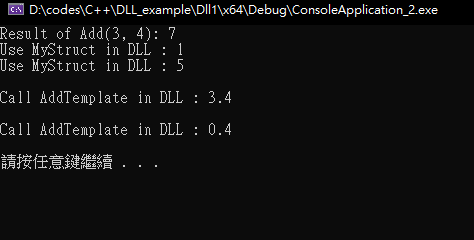
    std::cout << "Result of Add(3, 4): " << result << std::endl;


    MyStruct myStruct{ 1,5 };
    std::cout << "Use MyStruct in DLL : " << myStruct.number1 << std::endl;
    std::cout << "Use MyStruct in DLL : " << myStruct.number2 << std::endl << std::endl;

    std::cout << "Call AddTemplate in DLL : " << AddTemplate(1.1, 2.3) << std::endl << std::endl;

    std::cout << "Call AddTemplate in DLL : " << AddTemplate(0.1f, 0.3f) << std::endl << std::endl;

    // 卸載 DLL
    FreeLibrary(hDLL);

    return 0;
}
資料夾
使用 ‘LoadLibrary’ 載入 DLL
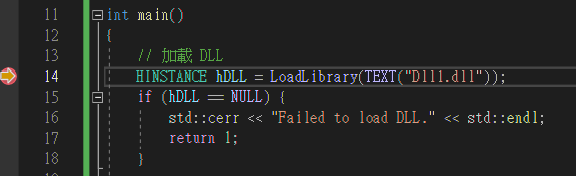
載入模組前

載入模組後

結果