
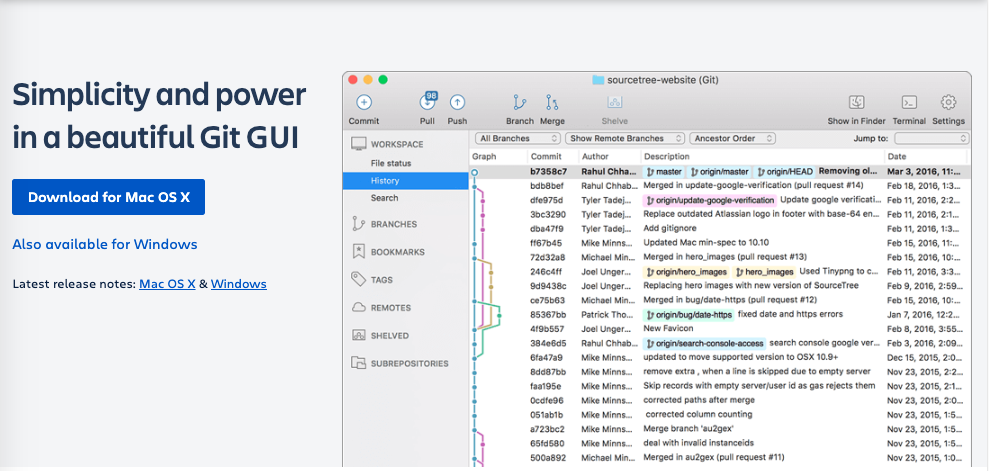
Sourcetree 教學
1.先安裝 Sourcetree
2.登入 Github, 點選右上角頭像選擇 Settings.
3.選擇 Developer Settings, 然後點選 Personal access tokens -> Tokens(classic)
4.點選 Generate new token -> Generate new token(classic)
5.Note 輸入名稱, Expiration 選 NoExpiration, 功能全部勾選, 點選 Generate token
6.複製金鑰
MAC :
7.打開 Sourcetree,選擇 Accounts -> Add
8.Auth Type : Personal Access Token,Username : 隨意名稱 ,Personal Access Token : 剛剛複製的金鑰 ,Protocol:SSH, 然後點選 Save
Windows :
7.打開 Sourcetree, 選擇 Tools -> Authentication -> Add
8.Hosting Service 選 GitHub, Authentication 選 Personal Access Token, 按下 Refresh Personal Access Token, 使用者名稱 : 隨意名稱, 密碼 : 剛剛複製的金鑰, 然後點選確定
9.點選 Remote -> 選擇專案-> Clone, 選擇路徑後下載